ON YOUR WRIST
Set up your watch.
Open Settings → Watch & watch faces → Set up my watch in T1 Arc on your phone. The app takes you through one short step at a time. You can complete setup without this website or a computer.
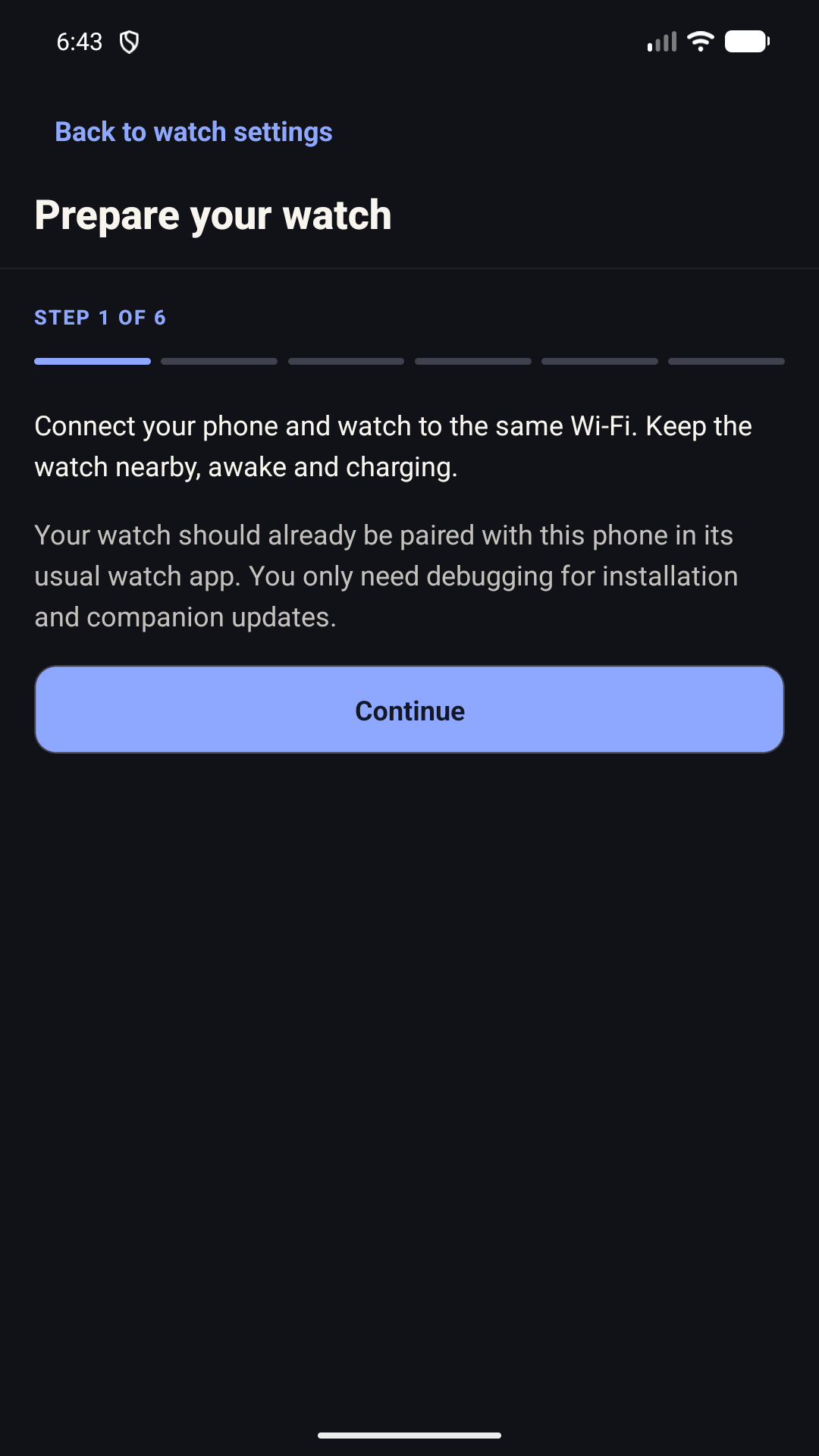
1. Prepare your watch
Pair it with your phone using its usual manufacturer app first. Connect both devices to the same Wi-Fi. Keep the watch nearby, awake and charging.
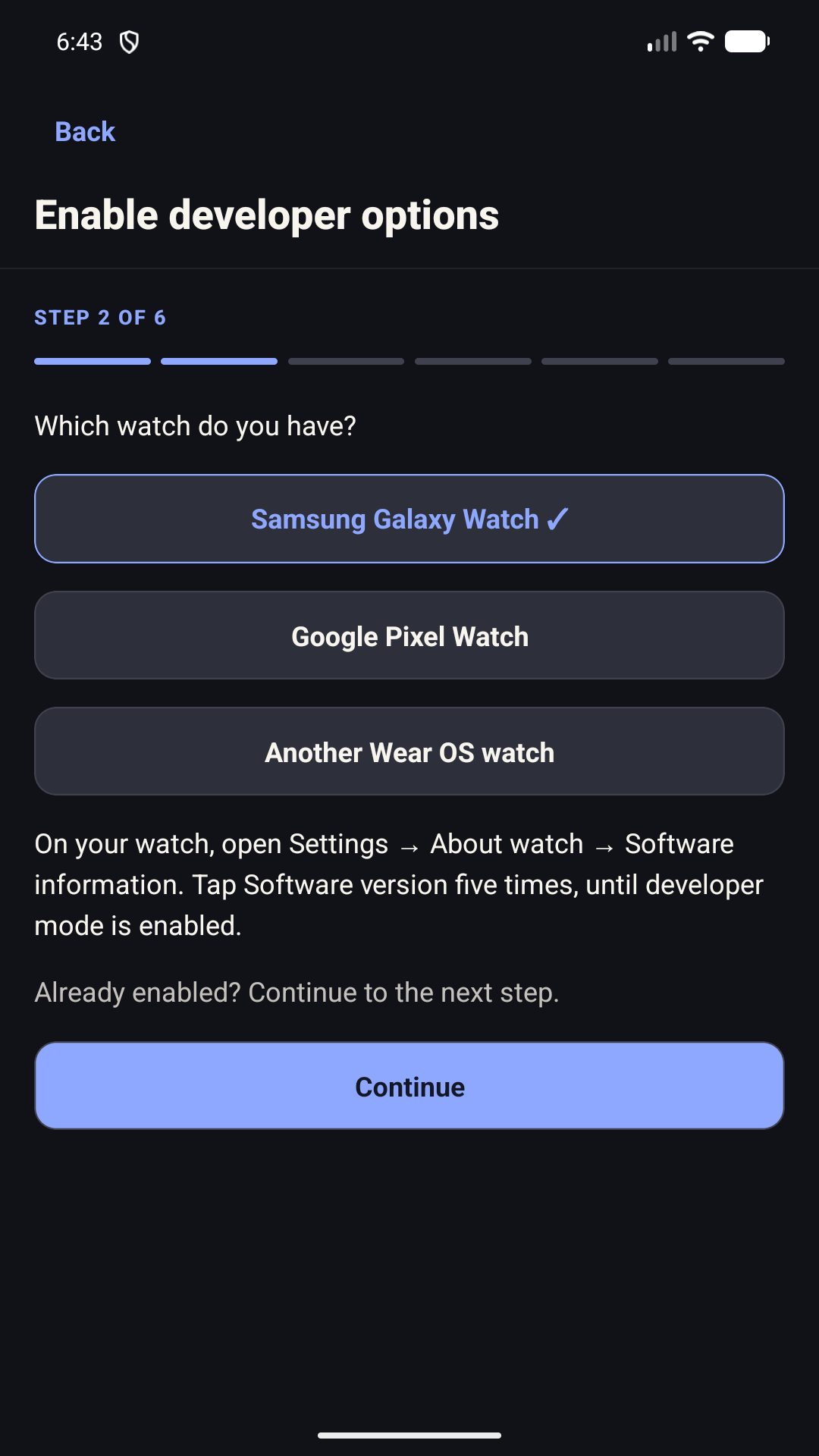
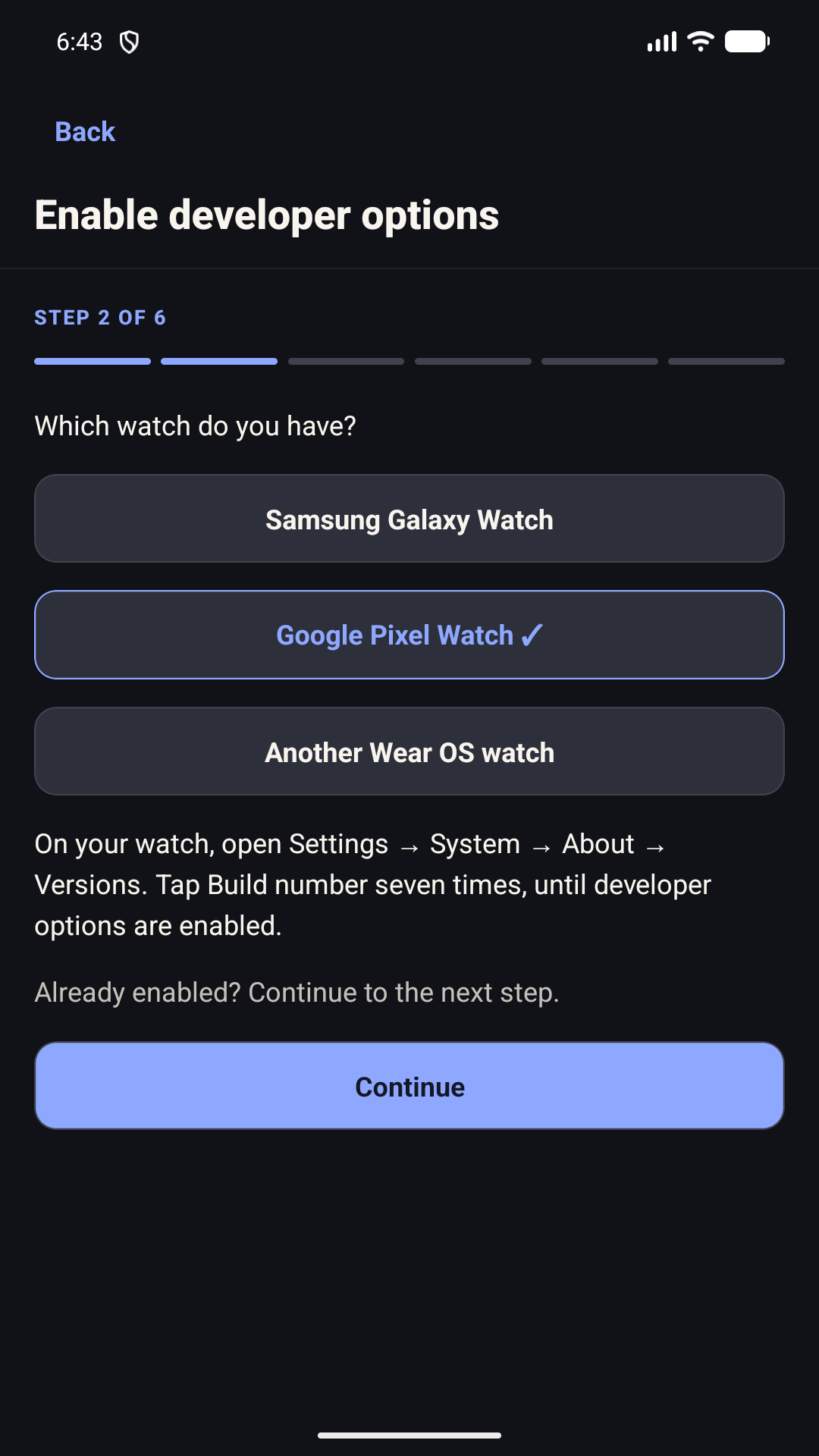
2. Enable developer options
Choose your watch in the phone app. These settings are on the watch.
Samsung Galaxy Watch (Wear OS)
Open Settings → About watch → Software information. Tap Software version five times until developer mode is enabled. Return to Settings.
Google Pixel Watch
Open Settings → System → About → Versions. Tap Build number seven times until developer options are enabled. Return to Settings.
Another Wear OS watch
Look in Settings → System → About, sometimes called About watch. Find Build number, possibly under Versions or Software information, and tap it seven times. Menu names vary by manufacturer and software version.
Select this route for other brands only when the watch runs Wear OS 3 or newer. Brand name alone does not establish compatibility.
3. Turn on wireless debugging
In the watch's Developer options, turn on ADB debugging and Wireless debugging. Allow debugging on your trusted Wi-Fi when the watch asks.
If the watch only offers Debug over Wi-Fi, choose the older-watch option in T1 Arc. That route asks you to approve a connection on the watch instead of entering a pairing code.
4. Pair your watch
Open Pair new device on the watch and keep it open. In T1 Arc, select the matching watch and enter its six-digit code.
If discovery fails, use the manual fields. The pairing port is on Pair new device. After pairing, the connection port is on the main Wireless debugging screen. These are different and can change when debugging restarts.
5. Install T1 Arc
Press the install button in the phone app and keep both devices connected until it finishes. Only the matching companion bundled with T1 Arc is installed. A normal update keeps watch app data.
6. Check your reading and choose a face
Open T1 Arc on the watch. Confirm the glucose reading and its time agree with the phone. Installation success alone does not confirm glucose delivery.
Choose a face in the phone app where supported. Then turn Wireless debugging and ADB debugging off on the watch. Normal glucose syncing does not need debugging.
Meridian, Chronograph, Atelier, Pace and Summit are included. On Wear OS 4 or 5, separate face APKs use the computer installation route in the release's watch guide; the phone chooser does not install those faces. On Wear OS 3, use the companion, tile or supported glucose complication.
What you will see on your phone
Actual T1 Arc setup screens captured in an Android emulator. Watch menus vary; these are phone screenshots, not pictures of every supported watch.
If a step does not work
- No watch found
- Keep Pair new device open and retry discovery. Check both devices are on the same Wi-Fi; guest networks can block communication between devices. Use manual details if needed.
- Pairing code rejected
- Open Pair new device again and enter its new code and pairing port. Keep that screen open while pairing.
- Paired, but cannot connect
- Return to the main Wireless debugging screen and use its connection port. Allow the older authorisation prompt if one appears.
- More than one device appears
- Select the address that matches your watch. Do not choose another person's device.
- Installation interrupted
- Reconnect and retry installation. T1 Arc checks what is installed before continuing.
- Signature conflict or older version
- Stop and check you have the official matching release. Do not uninstall an existing app to bypass the message: that can remove its local data.
- Installed, but no reading
- Check the phone has a current reading, the watch is paired in its usual phone app, and T1 Arc is open on the watch. Use Check companion connection. A stale phone source cannot supply a fresh watch reading.
Guide checked 17 September 2026. Phone-only installation and delivery were previously tested on Galaxy Watch 8. Older Wear OS emulator checks do not establish physical testing of every brand or model.